News
Using Ceph as a Storage Destination for Duplicati
Already running Ceph? It's one of the best backup targets you could ask for - durable, self-hosted, and free of egress fees - and connecting Duplicati to it through the RADOS Gateway takes about ten minutes. This guide walks through creating an RGW user and bucket, configuring the S3-compatible destination, and the handful of options that matter more with Ceph than with public cloud storage.
If you run a Ceph cluster, you already have one of the best backup targets available: it's durable, self-healing, scales horizontally, and lives on hardware you control. Pairing it with Duplicati gives you encrypted, deduplicated, versioned backups that never leave your own infrastructure.
This guide walks through connecting Duplicati to Ceph via the RADOS Gateway (RGW), Ceph's S3-compatible object interface. It takes about ten minutes.
Why Ceph and Duplicati work well together
Duplicati treats its destination as dumb block storage: it uploads encrypted volume files, lists them, occasionally downloads them for restores or verification, and deletes them when retention rules say so. That is exactly the workload object storage is designed for.
Ceph brings a few things to the table that make it a particularly good fit:
Data sovereignty. Backups stay on-premises or in your own data centre. Combined with Duplicati's client-side AES-256 encryption, nothing readable ever leaves the machine being backed up.
No egress fees. Restores and test restores are free, so there's no cost penalty for actually verifying your backups.
Erasure coding and replication. Ceph handles redundancy underneath; Duplicati doesn't need to know or care.
Multi-tenancy. RGW users, buckets, and quotas make it easy to isolate one client or department from another. Useful if you're an MSP hosting backups for multiple customers on shared storage.
Prerequisites
A running Ceph cluster with at least one RGW daemon deployed and reachable from the machine running Duplicati
Admin access to the cluster (or someone who has it) to create an RGW user
Duplicati 2.4 or later installed on the client
RGW listens on port 7480 by default for HTTP, or 443 if you've put TLS in front of it. We strongly recommend TLS for anything that crosses a network boundary, even though Duplicati encrypts the payload regardless.
Step 1: Create a dedicated RGW user
Give Duplicati its own credentials rather than reusing an existing user. On a node with the Ceph admin keyring:
The output includes a keys array with an access_key and secret_key. Copy both; you'll need them in Step 3.
Optionally, cap how much this user can consume:
If you're running Ceph under Rook on Kubernetes, prefix the radosgw-admin commands with kubectl -n rook-ceph exec -it deploy/rook-ceph-tools --.
Step 2: Create a bucket
Duplicati can create the bucket itself if the user has permission, but it's cleaner to create it up front. Using the AWS CLI with your new credentials:
Any S3 client works here, as does the Ceph Dashboard under Object Gateway → Buckets.
One bucket can hold many backup jobs; use a folder prefix per job or per machine to keep them separate.
Step 3: Configure the destination in Duplicati
Open the Duplicati web UI and click Add backup. Give the job a name and a strong encryption passphrase, then on the Destination step:
Storage type: S3 Compatible
Server: choose Custom server URL
Server URL: your RGW endpoint, e.g.
rgw.example.com(orrgw.example.com:7480if you're on the default HTTP port)Use SSL: tick this if RGW is behind TLS
Bucket name:
duplicati-backupsFolder path:
webserver-01(or whatever identifies this job)AWS Access ID / AWS Access Key: the keys from Step 1
Click Test connection. Duplicati will attempt to list the bucket, and if that succeeds you're done with the hard part.
Continue through the source-selection, schedule, and retention steps as you would for any other destination.
The same thing from the command line
If you script your deployments, the destination is expressed as a single URL:
Pass it as the target to duplicati-cli backup, or store it in a job configuration file. Keep the secret out of shell history by using the --parameters-file option or environment variables.
Options worth knowing about
A handful of advanced options (under Advanced options in the UI, or as --flags on the CLI) matter more with Ceph than with public cloud providers:
Path-style addressing. By default the S3 client uses virtual-hosted URLs (bucket.rgw.example.com). This requires a wildcard DNS record and a matching rgw_dns_name setting on the gateway. If you haven't set that up, force path-style requests instead:
This is the most common cause of "bucket not found" errors against an otherwise healthy RGW, so try it first if the connection test fails.
Volume size. Duplicati's default remote volume size is 50 MB. On a local Ceph cluster with fast networking, raising this to 200–500 MB reduces the number of objects and speeds up listing operations on large backups. Set it under Options → Remote volume size.
Concurrency. --asynchronous-concurrent-upload-limit controls how many volumes upload in parallel. RGW handles concurrent uploads well; values of 4–8 are reasonable on a LAN.
Storage class. Leave this blank. Ceph doesn't map AWS storage classes the way Amazon does, and RGW placement targets are configured on the gateway side, not per request.
Verifying it works
After the first backup completes, run a test restore of a few files to a temporary directory. This proves the full round trip - encryption, upload, listing, download, decryption - rather than just the upload half.
On the Ceph side, you should see encrypted .zip.aes volume files landing in the bucket:
Their names and contents tell an observer nothing about what was backed up.
Troubleshooting
"The specified bucket does not exist": almost always the path-style issue above. Set --s3-ext-forcepathstyle=true.
SSL/TLS errors: RGW behind a self-signed certificate will fail the connection test. Either install a proper certificate (Let's Encrypt via cephadm works well), add your CA to the client's trust store, or, as a last resort for internal testing, use --accept-specified-ssl-hash with the certificate's fingerprint.
Access denied on delete: Duplicati needs to delete old volumes when compacting or applying retention. Confirm the RGW user has full permissions on the bucket and isn't subject to a bucket policy that restricts s3:DeleteObject.
Slow listings on huge backups: increase the remote volume size so there are fewer objects, and make sure you're on a recent Ceph release; RGW listing performance has improved substantially across versions.
Managing many machines against one cluster
Once you have Ceph as a target, the natural next step is pointing a fleet at it: every server, every workstation, every client site. Each one gets its own RGW user and folder, and the cluster absorbs it all.
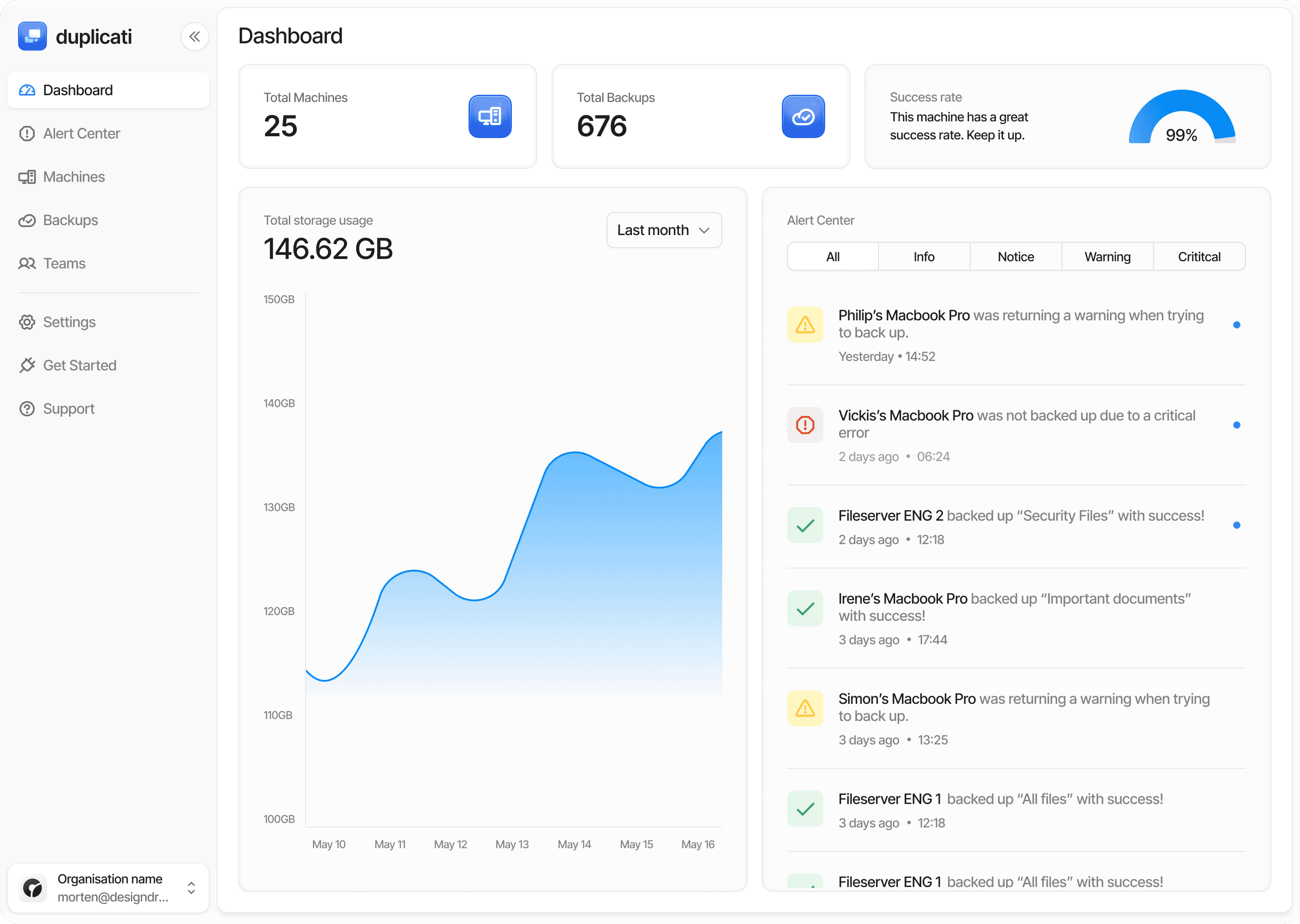
Keeping track of which of those jobs ran, which failed, and which are silently stale is where the Duplicati Console comes in. It gives you a single dashboard across every Duplicati installation you manage, with alerting when a backup misses its schedule, remote configuration, and per-client reporting - the pieces that turn "a lot of backups" into something you can actually operate. If you're an MSP or run infrastructure for more than a handful of machines, it's worth a look.