Guides
From open-source client to managed fleet: what changes when you connect Duplicati to the Console
Connecting Duplicati to the Console doesn't change how your backups are made, where they're stored or who holds the key. It changes whether you find out a backup stopped today or three weeks from now.
If you run Duplicati today, you have probably seen the prompt asking whether you want to connect it to the Duplicati Console. This article explains what actually changes when you say yes, and what stays exactly as it is, so you can make that call on the merits rather than on a pop-up.
The short version: connecting does not change how your backups are made, where they are stored, or who holds the encryption key. It changes how you see and operate them. One machine with a working schedule rarely needs that. Five machines, a client's office or a server you can't easily reach usually do.
What stays the same
Connecting adds a management layer on top of the client you already run. It does not replace it.
The client is the same open-source Duplicati. Backups still run on the machine, on its own schedule, even if the Console is unreachable.
Your storage stays yours. Backups keep going to the destination you configured: S3, B2, SFTP, a NAS or anything else Duplicati supports.
Your encryption key stays yours. Data is encrypted on the machine before it leaves. For backups you configure yourself, the Console never holds the key.
Your existing backups carry over. Nothing is re-uploaded or migrated; the Console simply starts receiving reports from the jobs you already have.
You can disconnect. Turn off remote management and the client goes back to working exactly as it did before.
Side by side
Client on its own | Connected to the Console | |
|---|---|---|
Status | Open each machine's web UI to see its last run | One dashboard: every machine online/offline, every job green, yellow or red |
Alerts | Per-machine report settings (email, HTTP, Telegram, XMPP), configured one by one | Rules for missed backups, unusual file changes and slow runs, sent to email, Slack, Discord or a webhook |
Silent failures | A machine that stops running sends nothing, so nothing tells you | "Missed backup" alerts fire when a job hasn't run by its expected time |
Configuration | Set up on each machine, by hand | Define a backup configuration once and push it to many machines; changes roll out automatically |
New machines | Install, then configure locally | Registration links and preload files: machines enroll and receive their backups on first start |
Remote access | VPN, port forwarding or remote desktop | Click Connect to open the machine's own UI through an end-to-end encrypted tunnel |
Restore | Sit at (or tunnel into) the machine | Restore from wherever you are signed in to the Console |
Restore testing | Manual, if you remember | Restore test policies with an alert when a backup falls behind |
Many customers or sites | Separate logins, spreadsheets | Organizations and sub-organizations, tags, teams and more |
Central status: one screen instead of a round of logins
On its own, each Duplicati instance answers one question well: how did my last backup go? Ask that across ten machines and you are opening ten browser tabs, or more realistically, not asking at all until something breaks.
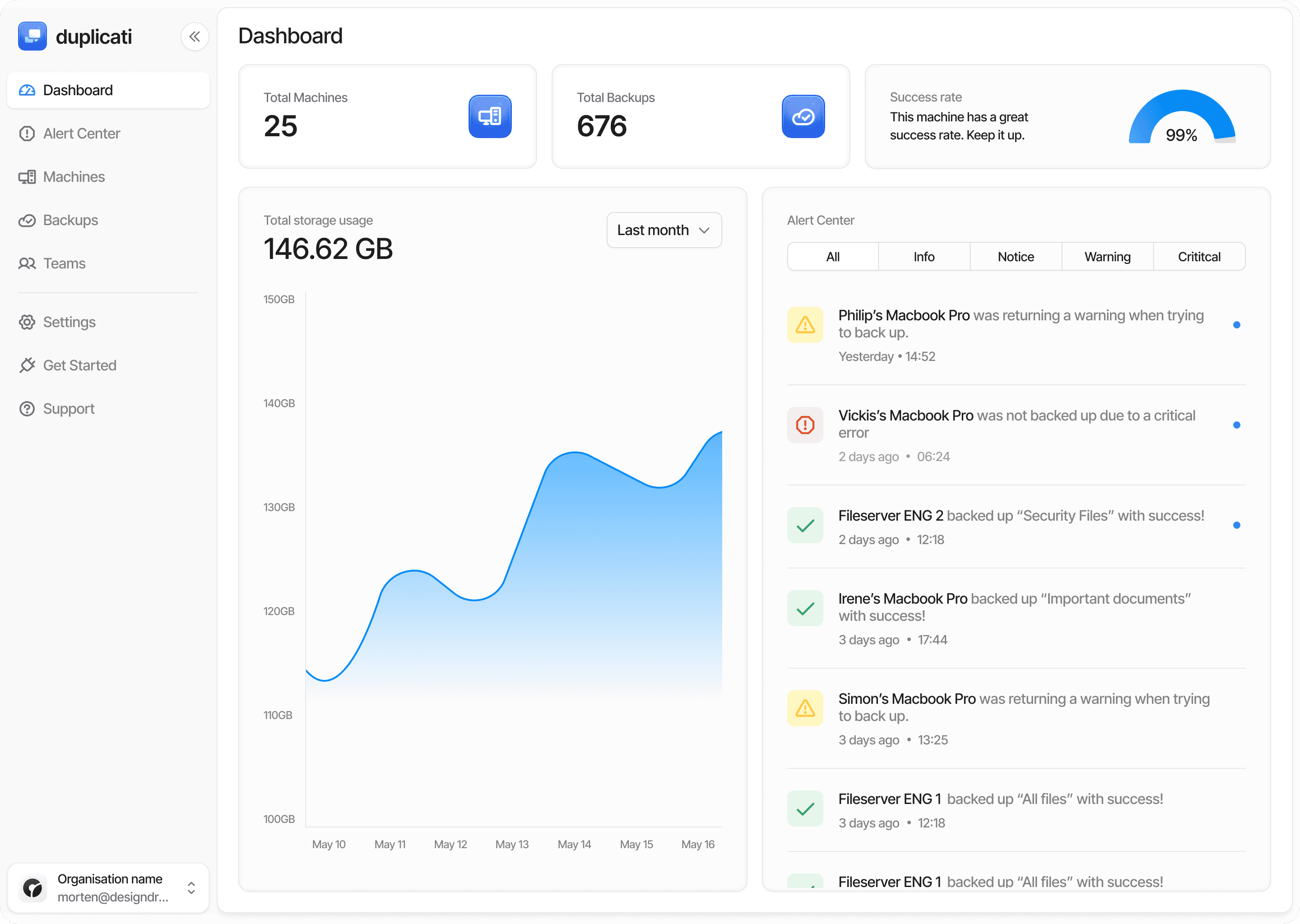
Once connected, every machine reports to the Console after each run. The machine dashboard shows which machines are online, offline or in trouble. The backup dashboard shows every job across the fleet with a color-coded result: green for success, yellow for warnings, red for errors. Total storage use is tracked in the same place, which helps with capacity planning before a destination fills up.
The practical shift is from checking to noticing. You stop visiting machines to confirm they are fine and only look at the ones that aren't.
Alerts: catching the backup that never ran
The standalone client can already send reports by email, HTTP, Telegram or XMPP. That works well for errors. Its blind spot is the failure that produces no report: a machine that is switched off, a service that stopped, a laptop that hasn't been on the network for three weeks. A job that never starts never sends a message saying so.
The Console's Alert Center works from the other direction. It knows what should have happened, so it can alert on absence:
Missed backups: a job hasn't run by its expected time.
Modified-files threshold: far more files changed than usual, which can be an early sign of ransomware or a runaway process.
Duration deviations: a backup suddenly takes much longer, often a network or storage problem in the making.
Restore tests falling behind: a backup hasn't passed a restore test as often as your policy requires.
Alerts go to email, Slack, Discord or a webhook, so they land where your team already looks. Rules are set once for the fleet rather than machine by machine.
Remote configuration: set the policy once
Without the Console, every machine's backup is configured on that machine. Twenty workstations means twenty setups, and twenty chances for a filter, a retention rule or a schedule to drift.
With the Console you can define a backup configuration once: source paths and filters, destination, schedule, retention and encryption. You assign it to machines, and when you change it, the assigned machines are updated. A simple "Workstation" and a "Server" template set cover many fleets.
Onboarding changes too. A registration link, optionally with a configuration attached, lets a new machine enroll and receive its backups on first start. Combine it with a preload file in an unattended install and a new machine is protected without anyone touching its UI. Links expire and can require manual approval, so only machines you expect can join.
For one-off changes you still have the full local interface: Connect opens a machine's own Duplicati UI from the Console, without a VPN, port forwarding or remote desktop.
Restore from anywhere
Restores rarely happen at a convenient time or place. Someone overwrote a spreadsheet at a branch office; a server at a client site lost a folder on a Sunday. With the standalone client, restoring means being at that machine or setting up a way to reach it first.
Connected, the restore starts from the Console. You open the machine through the Console's tunnel and restore through its normal Duplicati interface, from wherever you are signed in. The tunnel is end-to-end encrypted: the relay forwards traffic it cannot read. Data still moves directly between the machine and your storage, and is decrypted on the machine with your key.
The Console also helps with the restore you haven't had to do yet. Restore test policies set how often each backup must pass a restore test, and the Alert Center tells you when one falls behind. A backup that has never been restored is a hope, not a plan.
What you hand over, and what you don't
A fair question from anyone who chose open-source backup on purpose: what does the Console get to see?
Reports, not data. The Console receives backup results: status, timings, counts, warnings. It never receives your backup data, and file paths are redacted before reports leave the machine.
No keys, unless you choose. For backups you configure, the encryption key stays with you. If you store a configuration's key in the Console, it is shown to you before it is stored so you can keep your own copy.
Encrypted remote access. The tunnel behind Connect is end-to-end encrypted between your browser and the machine.
A stricter mode if you need it. Confidential processing reduces reports to error types only and turns off features that would store more, for organizations handling protected data.
No lock-in. Your backups are standard Duplicati backups in your storage. Disconnect the Console and you can still restore with the open-source client alone.
When the client alone is enough, and when it isn't
The standalone client is a complete backup tool, and for some setups it is all you need. Stay standalone if:
you protect one or two machines you use every day and would notice if one went quiet
email reports on failure already cover what you care about
you are always at the machine when you would need to restore
Connect if any of these sound familiar:
you look after more machines than you can comfortably check by hand
you are responsible for backups on machines you don't sit in front of: servers, remote staff, client sites
you have ever discovered a backup had stopped weeks after it stopped
you need to show a customer, auditor or manager that backups are running and restores are tested
you set up the same backup on new machines over and over
The line usually falls around the point where backups become something you are accountable for, not just something you run.
Try it on the machines you already have
The easiest way to decide is to connect the installs you already run and see your own fleet in one place. Every new Console account starts with a 14-day free trial, no credit card needed.
Sign up at app.duplicati.com.
In your existing Duplicati client, enable remote management in Settings and approve the connection (or accept the connect prompt you have already seen). See Connecting to the Duplicati Console for details.
Let your next scheduled backups run. Reports appear on the dashboard as they complete.
Set up one missed-backup alert to Slack or email, and try a restore through Connect.
Two weeks let's you see whether central status and alerts catch something you would otherwise have missed. If they don't, disconnect, and your client carries on exactly as before.
More on how it works: Using the Duplicati Console.